Mounting a MESH network compatible with Apple HomeKit
These last few days I’ve been home longer because of the world-wide coronavirus pandemic and He’s given me time to do several things I had to do.. One of them is the mount a MESH network compatible with Apple HomeKit. And I told you it’s the bomb!
What is a MESH network?
Do you have wifi coverage problems at home? Have you mounted repeaters, tested different routers and still not go fine? Do you dismount the connected domestic jars? Well… I know it sounds like an ad, but those are usually the basic problems we solve with a network month h.
We have already talked about how a MESH network can improve the coverage, reliability and speed of the wifi network of the housebut the problem is that The compatible routers are a little expensive. Basically. create a mesh network using several channels and several frequencies at the same time, so that you see only one inalambric network and not that of 2.4 and 5Ghz and the devices are automatically connected to the one you need.
The thing is, these days Amazon has made a good offer of the router eero and eero PRO that allows to mount a MESH network compatible with Apple HomeKit And I wanted to tell you a little bit how the safety of my network has improved (in addition to speed and coverage) with this router.
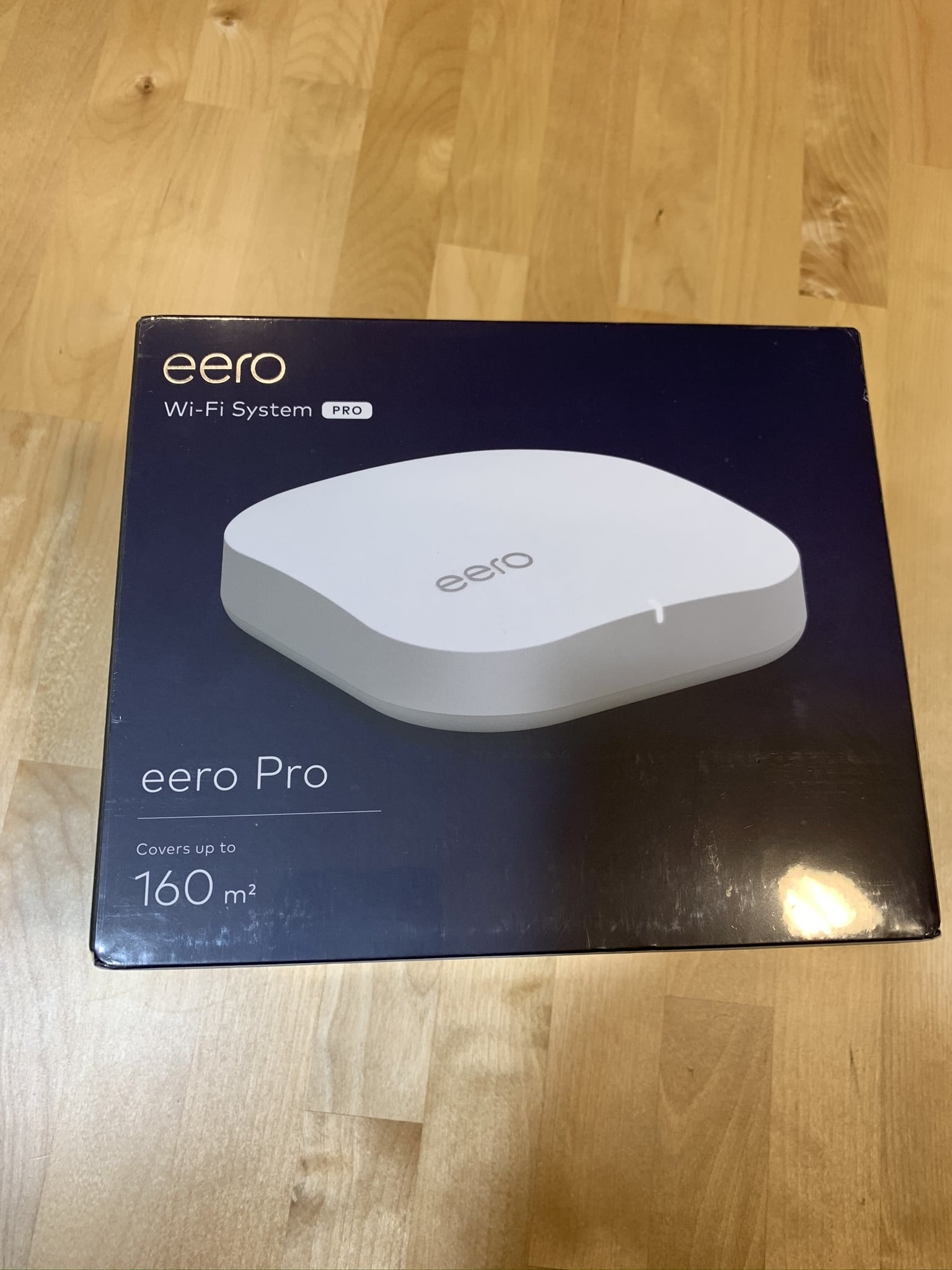
The router in question: eero PRO
In my case I bought the PRO because it gives a greater coverage than the no-PRO, though if you have to ride several at home anyway you can select the 3 pack and it comes out even better of price. However you can also now put one of them and then expand as the process is automatic, simply plug in the new and will automatically connect to the first to take the settings. Easy, easy.
In addition, the PRO version uses 3 bands: 2,4Ghz, 5,2Ghz and 5,8Ghz. I also like that It’s super discreet, it doesn’t have chorropotohundred antennas. As if it were a belly spider up:
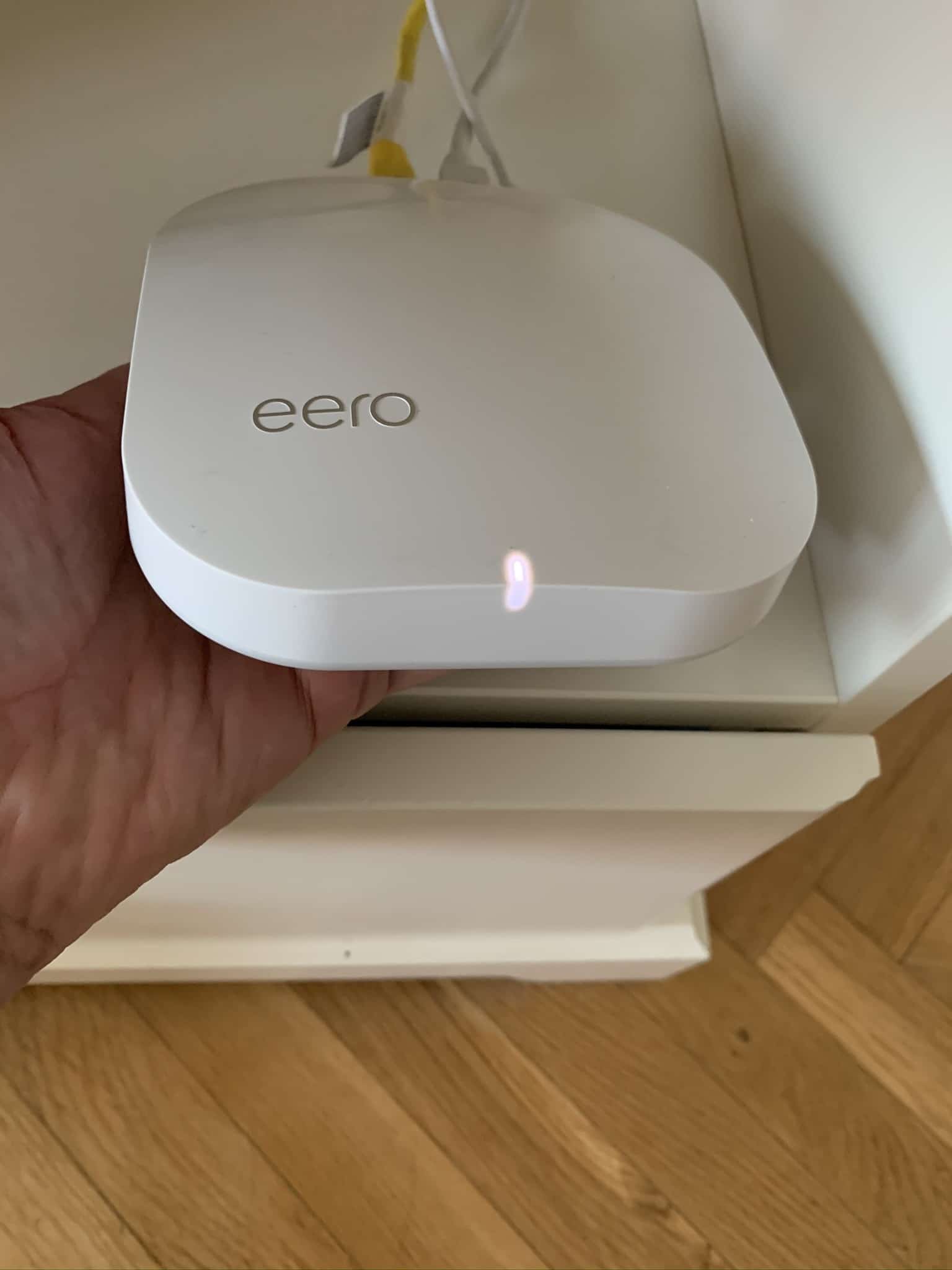
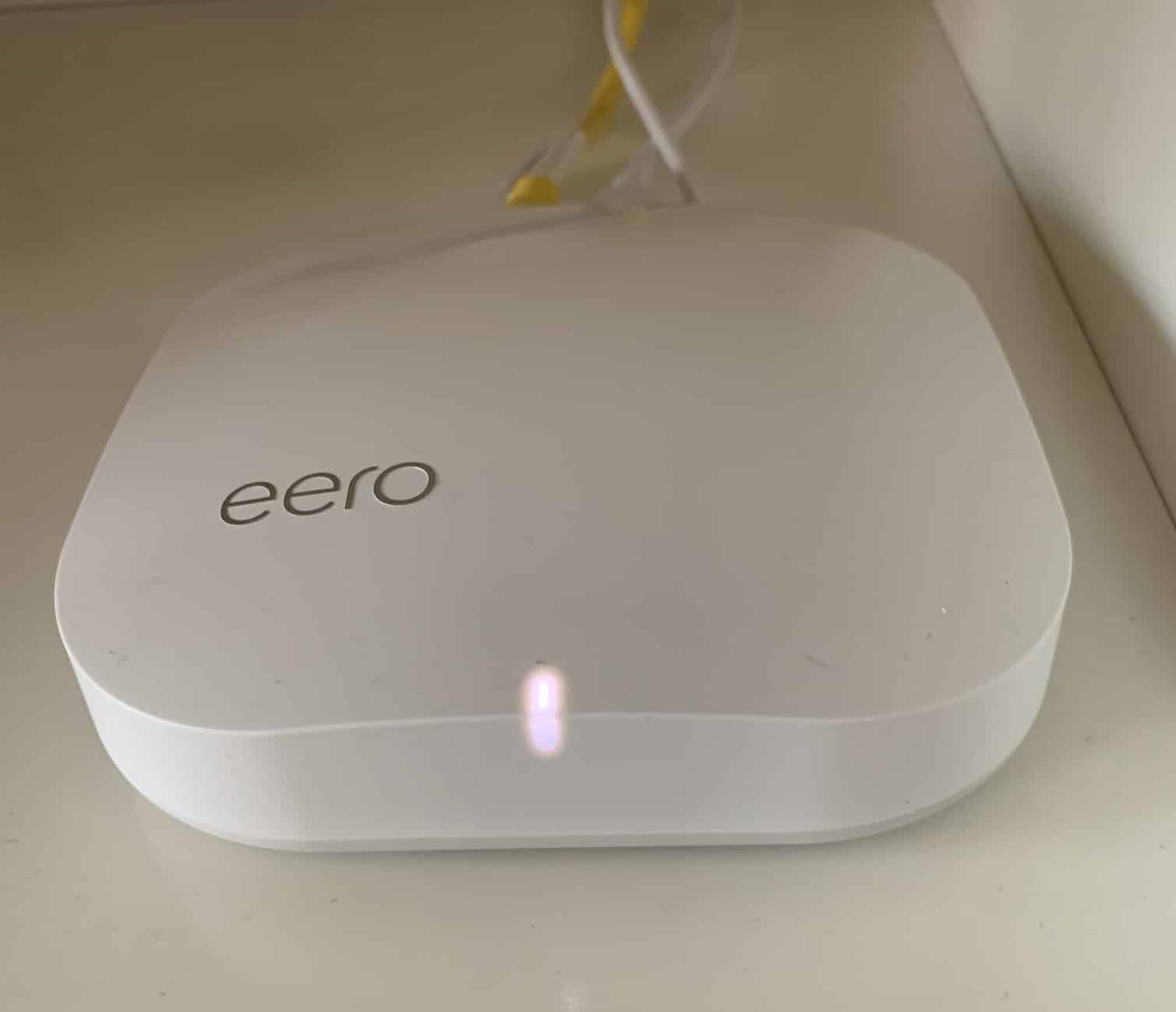
The configuration is non-existent. Simply download the eero app for the mobile, plug the eero into the operator’s router (where I have previously disconnected the wifi) and to the electrical network… and to function. The eero app detects it by Bluetooth without doing anything, or setting up a temporary network, or reading QR code or anything… and from that moment on you can finish setting up the new wifi network (simply choosing name and password, the rest does everything alone).
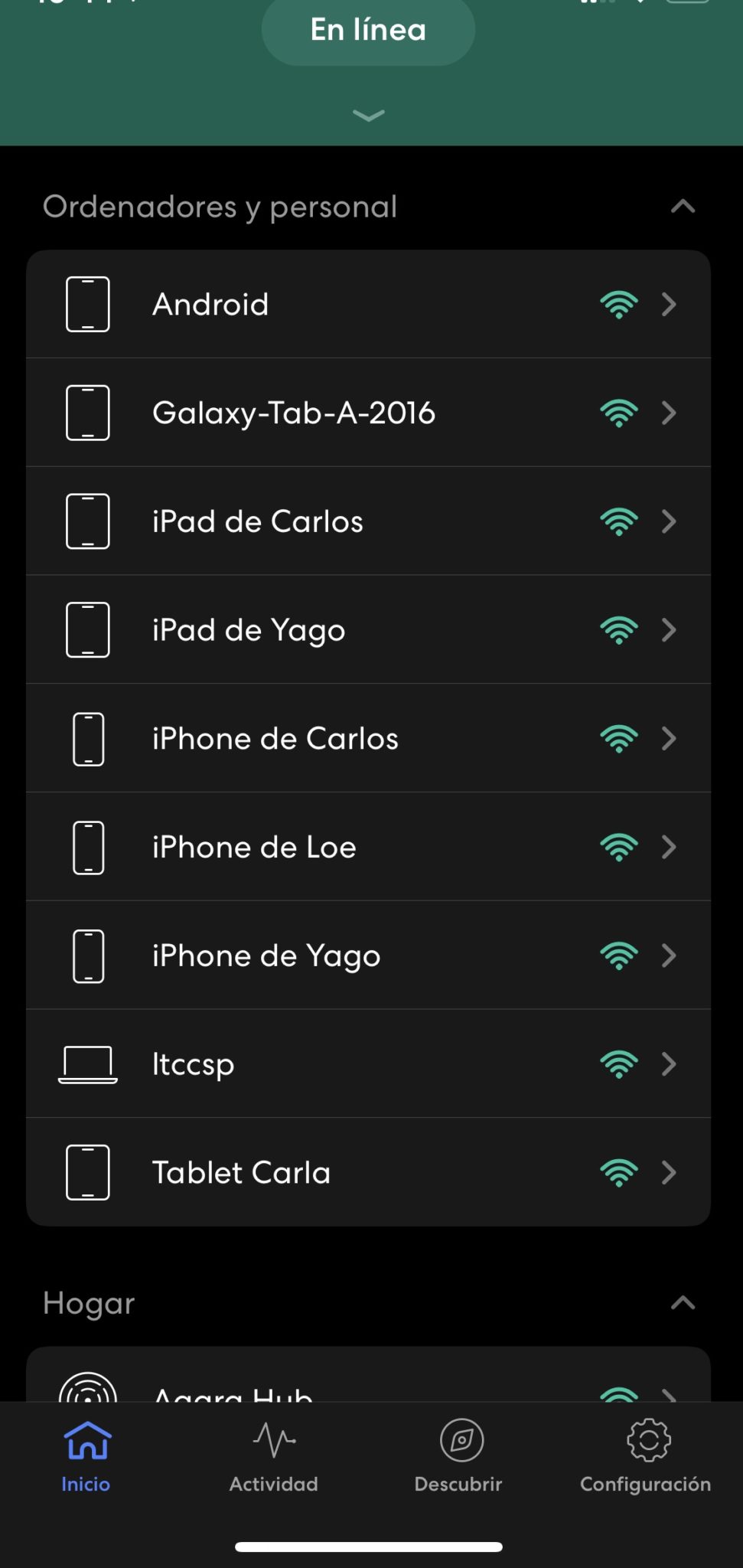
Ah, The updates are automatic! You don’t have to go in from time to time and look for a new version. In fact, they’re CONSTANTS. In the first week since I have it, it’s been updated twice.
Compatible with Apple HomeKit
What does it mean to be compatible with HomeKit? It means that It’s going to be integrated with the Apple House App and it’s going to give us additional functions like the possibility of… LIMITING THE CONEXION OF THE INTERNET!!! Jajajajaja, siiiiiiiiiiii!!!
The 7 or 8 users you usually pass here will remember that I have once told you that I had rules in my ISP router firewall to prevent the connected devices from sending information to the Internet. It’s clear there had to be some communication, but only the just and necessary for my lights to be turned on automatically when I’m getting home.
These rules have its advantages and its disadvantages. The biggest brat is that You have to be keeping it. because sometimes some server changes IP address. The second brat is that for firmware updates you have to open yes or yes so that you can download it from the corresponding servers.
Since the iOS 13.2 version, HomeKit supports other accessories such as routers. Well, with the HomeKit-compatible eero, you forget all that! The Home app recognizes it and gives you the option to set up one of the 3 security profiles for each of the connected devices! I’ve been testing it and it works really well:
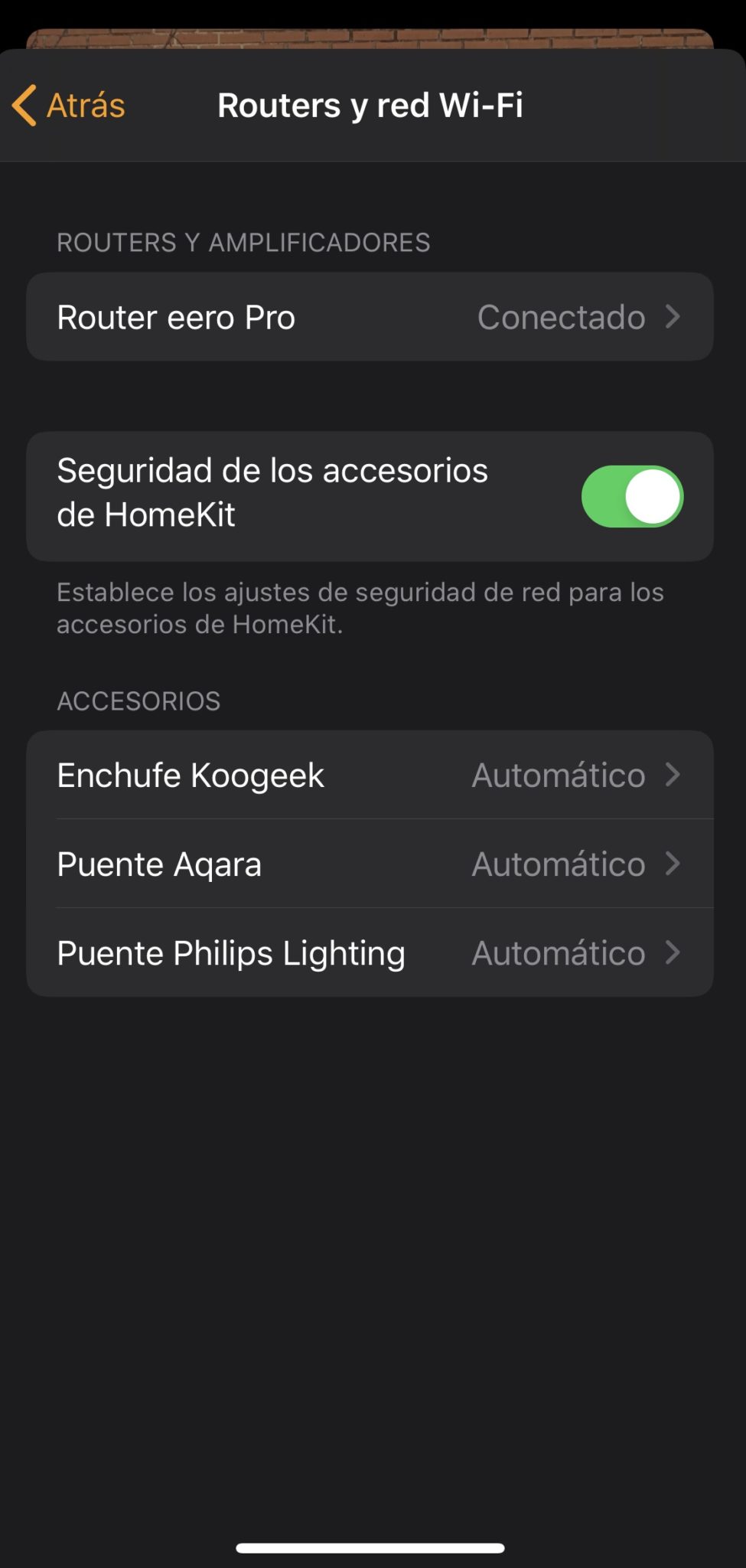
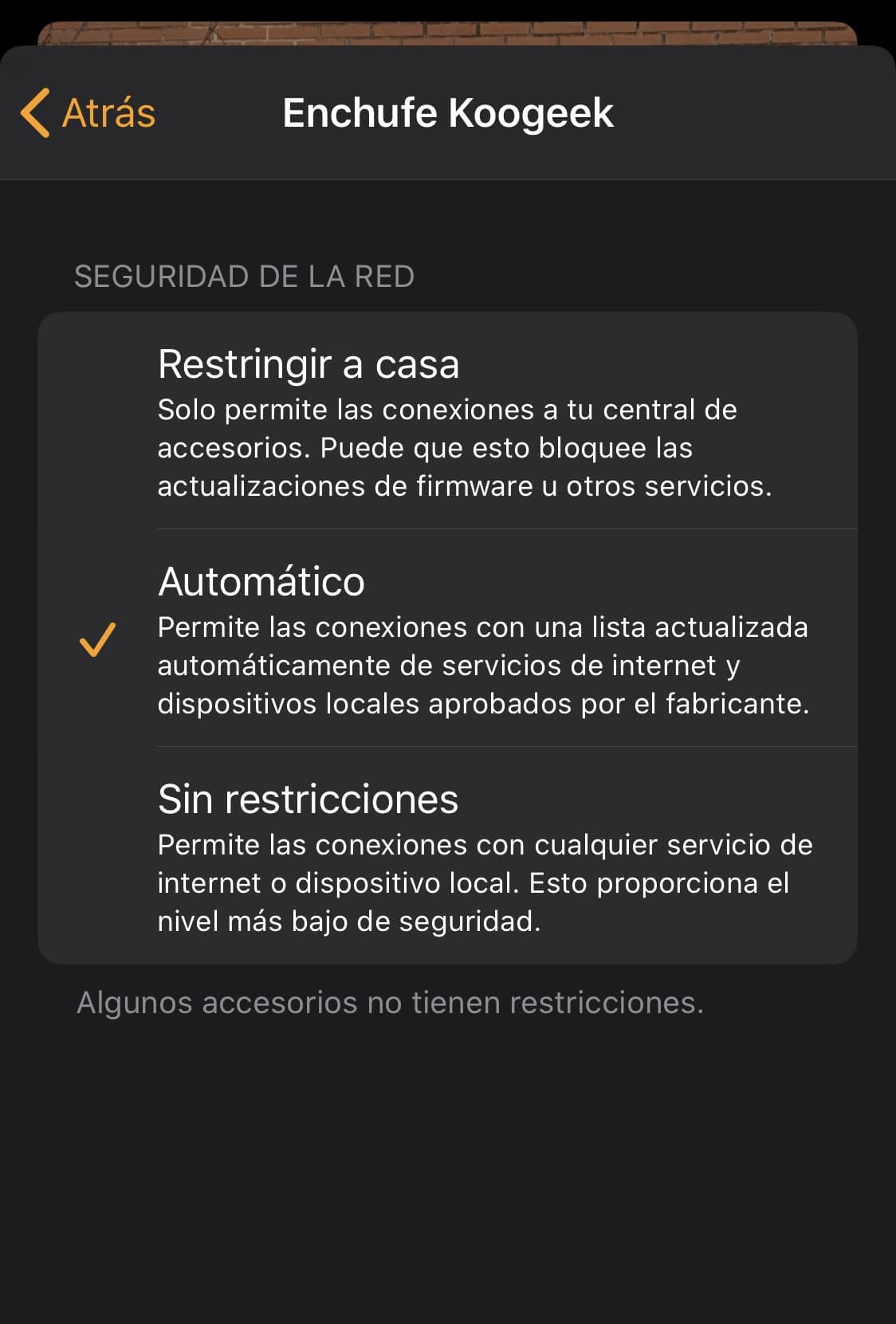
Besides, as you can see will identify the devices. Some show them directly well by the hostname, although in other cases it shows the network card manufacturer and you have to investigate a little… that has happened to me with a Philips TV, which was shown with a super rare name on the eero app and I have had to block the Internet access to it and go home testing what failed because it had no Internet connection… until I gave it to it.
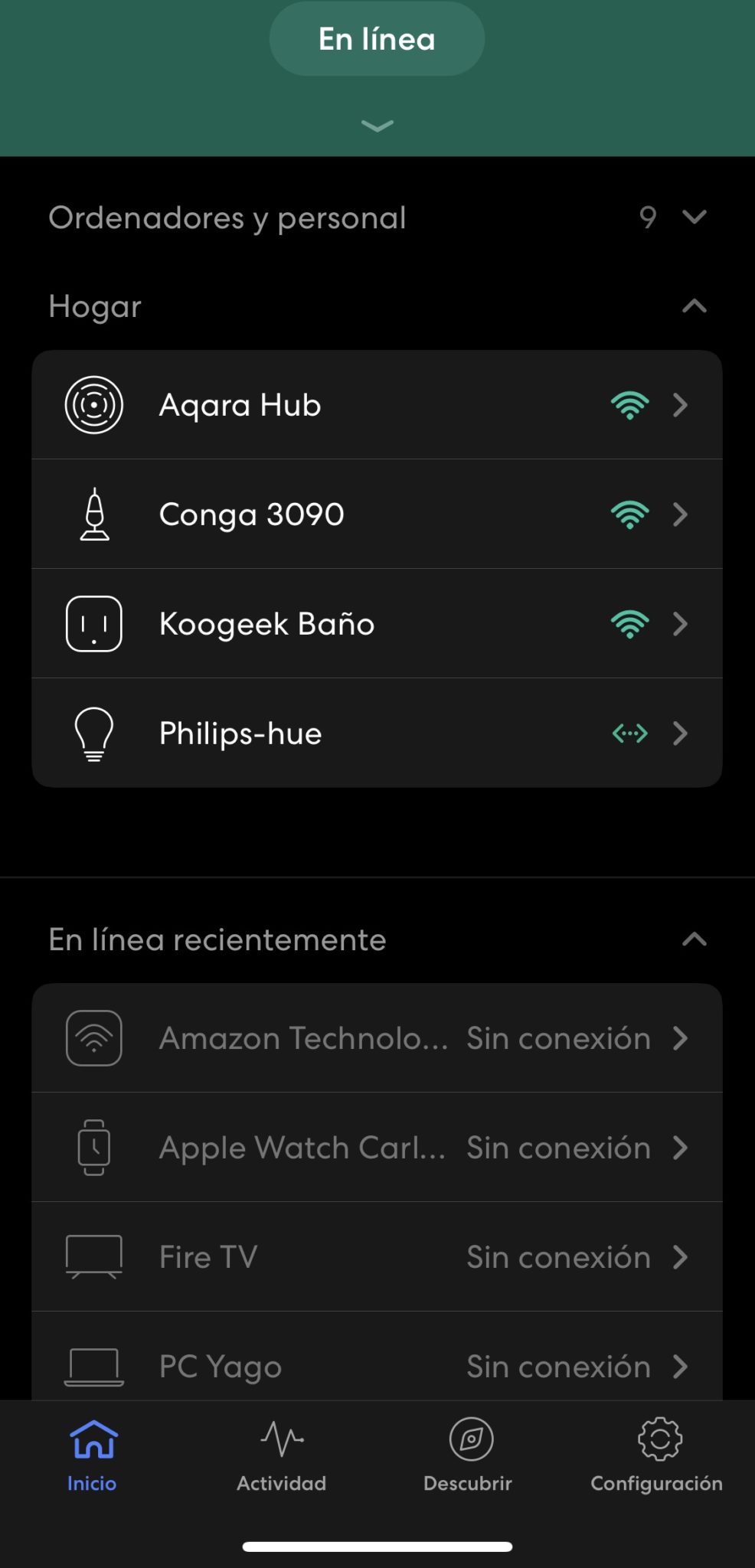
Profile development
Another interesting thing is that you can create profiles on the eero app (not yet in the House) and assign it to the devices, so for example you can make children’s devices disconnect every night at a given hour while the rest with another profile continue to work perfectly.
In short, I still have little time but the cache is 100% recommended, worth each of the almost 200 €it costs. I’ve been behind one of them for a while and I think I haven’t been able to choose better, but I’ll tell you if I see something doesn’t work as it plays or if I find new functionalities and cases of use:)
wp: block {«ref»: 1612} /