The problem: the lights turn on when the power goes out
Well, it’s not that they turn on when the power goes out, obviously if there’s no power they can’t turn on… but when the power comes back, ALL of them turn on at 100% in warm tones, that is, in the bulbs’ default configuration.
At my place the power doesn’t go out that often, but sometimes we turn on too many things at once… and the breaker trips. Then as soon as I flip the power back on, ALL the lights turn on, along with all the Philips Hue plugs, which I currently have connected to the heaters in the bathrooms.
What’s more, until Home Assistant fully restarts and the switches reconnect, there’s no way to turn them off… so those 3 or 4 minutes it takes for the Pi to boot up and Home Assistant to become available feel ETERNAL while my wife gives me that look that means ‘honey, it’s fine, but I’d love it if this worked a bit better, take it as a suggestion, my love’. You know the one.
If we have the original Philips Hue bridge, it’s possible to configure how the bulbs behave when the power comes back from the app. The options are the usual suspects: ON (all lights turn on), OFF (all lights stay off), and RECOVER (the lights go back to whatever state they were in before the power went out). Also, the bridge is integrable with Home Assistant, so if you keep the Philips Hue bridge you won’t have any issues.
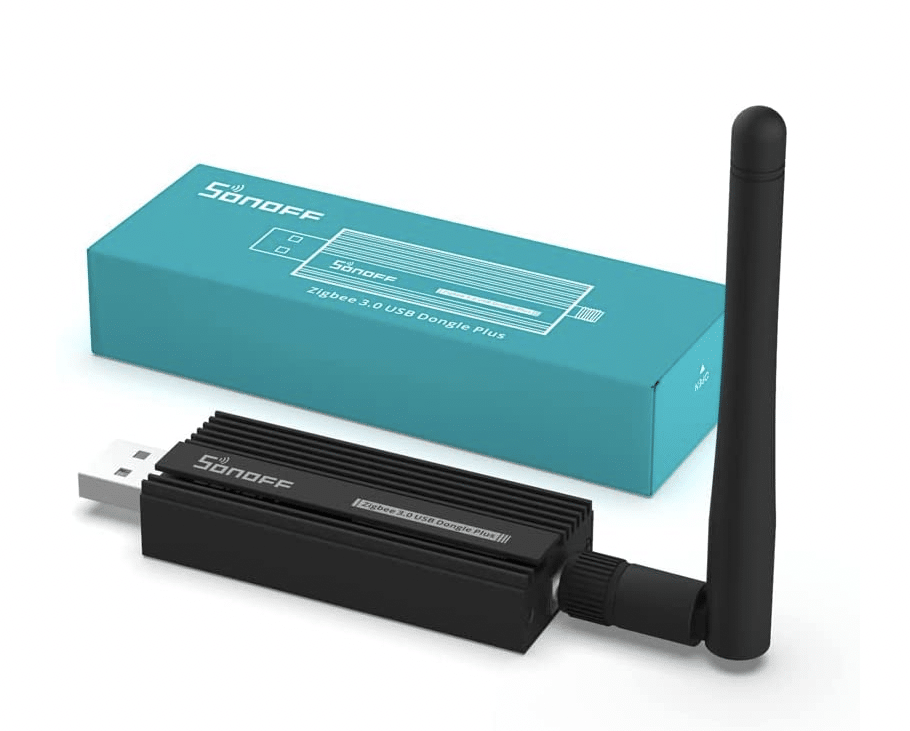
But as you know, I’m a bit of a knucklehead, and I decided to ditch all the zigbee bridges and use only Home Assistant with the SonOFF zigbee dongle… which, in every sense of the phrase, has brought me more headaches than benefits, although it’s true I’ve learned a lot and I think it runs faster than the official bridges since there’s no information exchange between platforms, all devices connect to the SonOFF dongle and are managed through the Pi, so after some time investigating I bitterly discovered that there’s no parameter whatsoever for configuring the bulbs’ behavior 🙁
Dongle SONOFF Zigbee 3.0
The solution: Mosquitto Broker
Eclipse Mosquitto is software for sending lightweight messages, to put it simply. Basically it publishes message queues that you can subscribe to. I won’t bore you with more details, but if anyone wants to dig deeper into this you can check out the Mosquitto Broker website https://mosquitto.org/ or read BBits’ post where they explain it wonderfully.
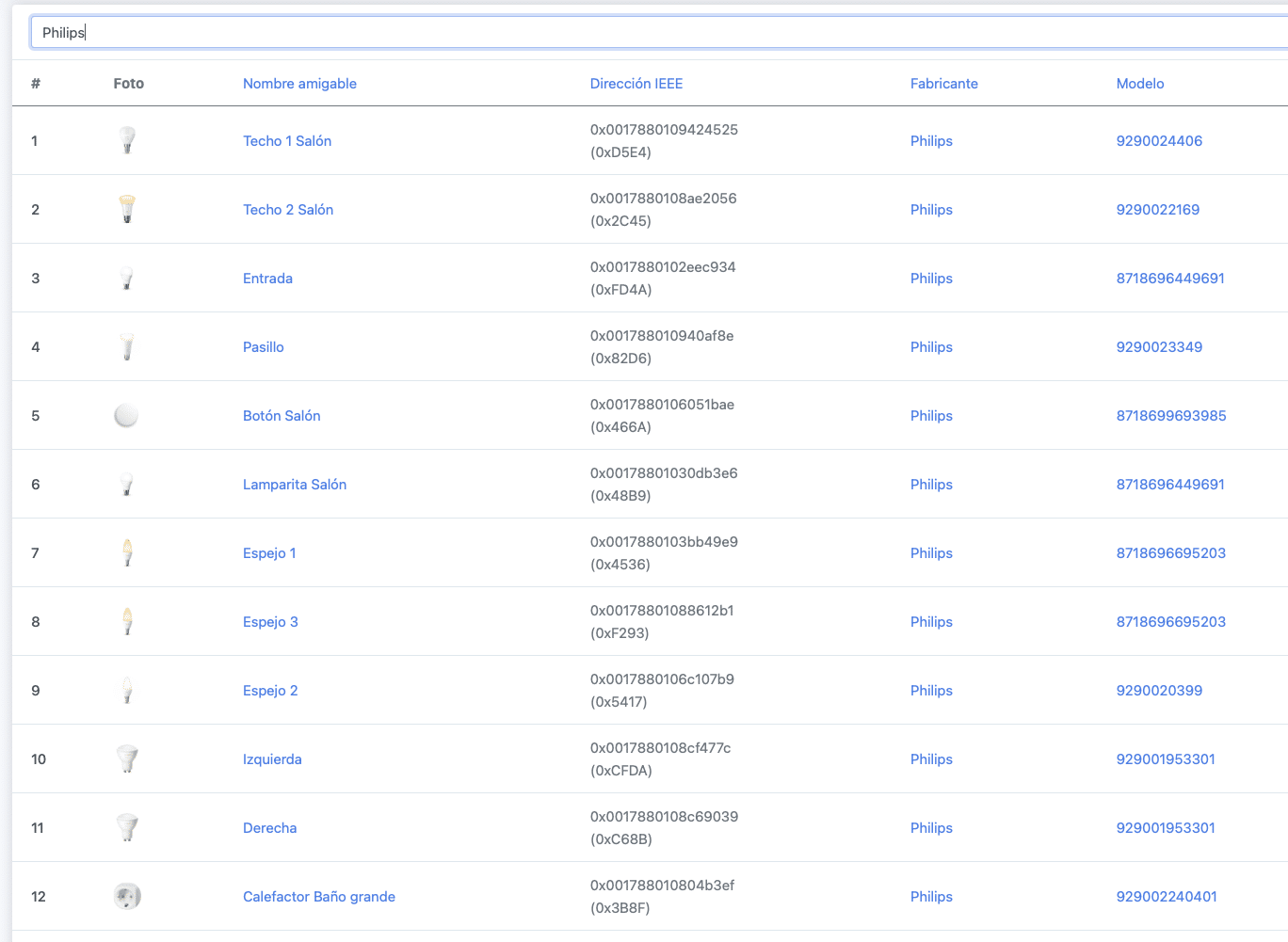
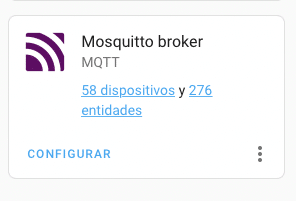
The thing is, in my Home Assistant setup I use Mosquitto to publish messages and Zigbee2MQTT so that Mosquitto is able to publish Zigbee messages. Sounds complicated but it’s practically the standard installation.
Dispositivos en Zigbee2MQTT en Home Assistant
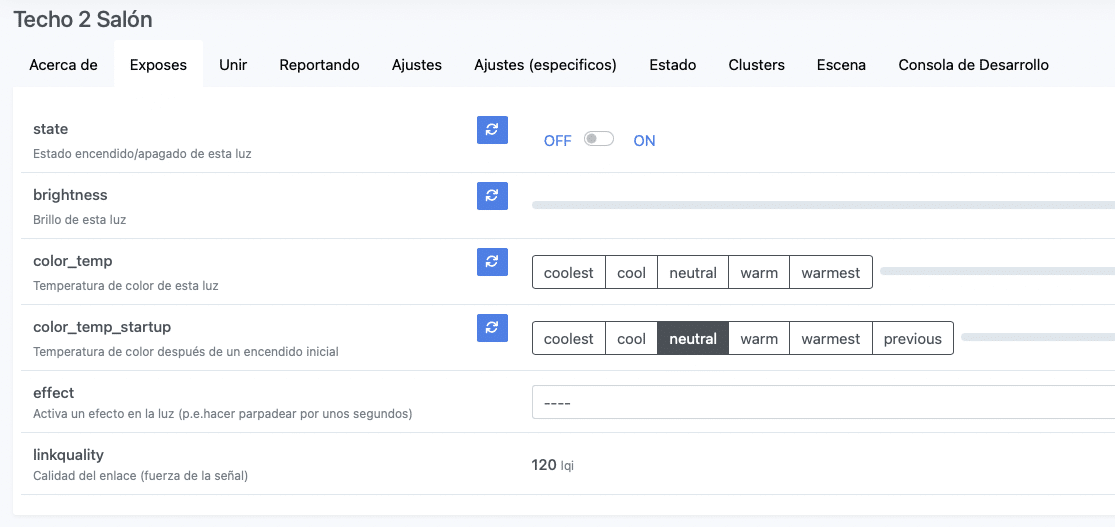
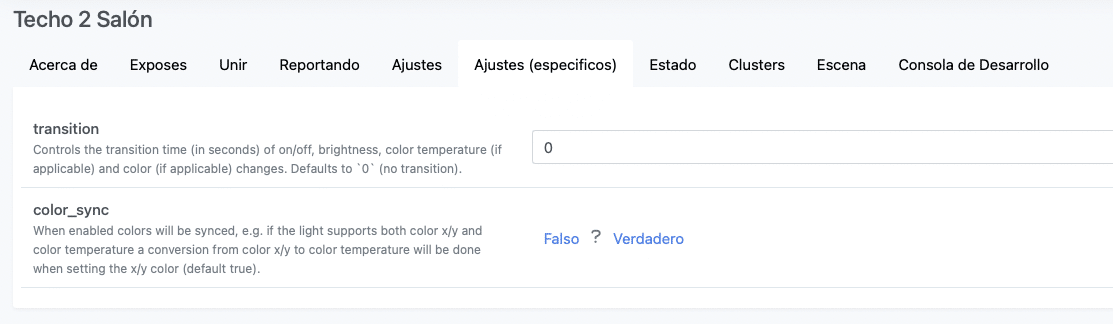
Normally you’d expect there to be a configuration parameter in Zigbee2MQTT, which is where we have all our devices, to set this behavior. This is where I mentioned there was an option to remove the delay on the Hue lights, that little 1-second fade they do when turning on and off… which looks really nice but adds lag. And the funniest part is that this can’t be changed from the Hue bridge, nor from the official app, nor anywhere else… but it CAN be changed from the device’s low-level configuration in Zigbee2MQTT:
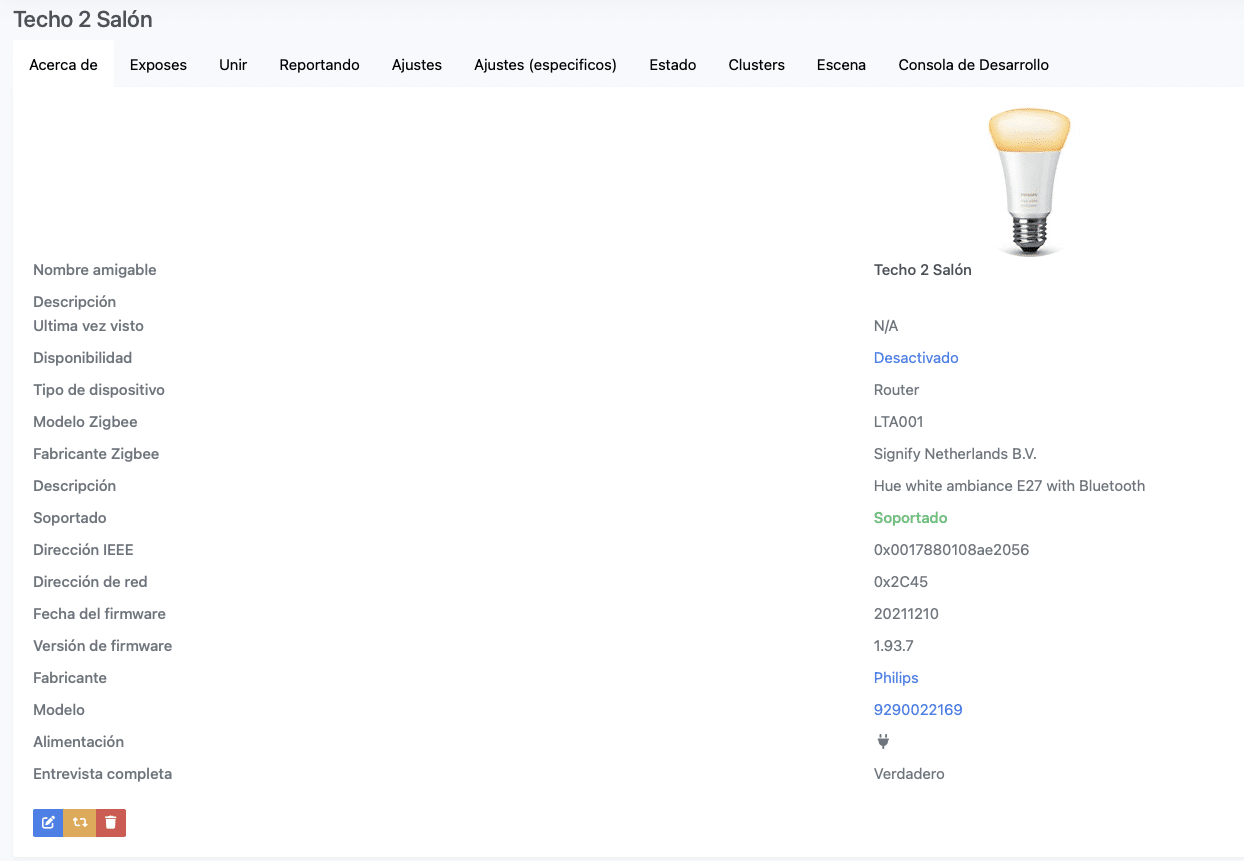
Bombilla Philips Hue en Home Assistant detectada a través de Zigbee2MQTT utilizando el dongle Zigbee SONOFF
Opciones bombilla Philips Hue en Zigbee2MQTT
Delay o gradiente en el encendido de la bombilla Philips Hue
But when it comes to the behavior when the power comes back on, things get a bit more complicated. Basically you need to send a command through Mosquitto that changes the light’s behavior in ‘zigbee language’. Let me explain it simply:
The command you need to send is «hue_power_on_behavior» and you need to send it directly to the topic zigbee2mqtt/light_name/set/ with whatever parameter you want to configure. You didn’t understand a word of that, did you? That’s just how ‘user-friendly’ some parts of Home Assistant are, I really don’t know why I get myself into these messes…
The ‘hue_power_on_behavior’ command is the one that controls what the bulb does when the power comes back. It accepts the parameters ‘on’ (the light turns on when power returns), ‘off’ (it stays off), ‘default’ (the bulb’s default behavior, usually 100% brightness and warm tone), and ‘recover’ (it goes back to the state it was in when the power went out).
So in my case, since what I want is for them to stay off, I’d have to send a ‘hue_power_on_behavior = off’ to each and every bulb. Oh, and to the plugs controlling the heaters too.
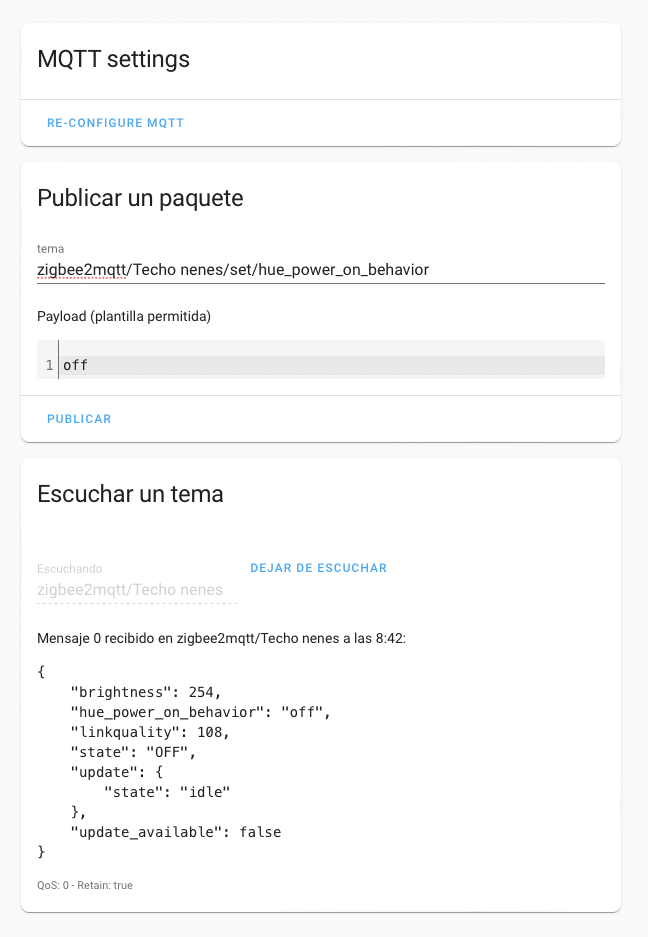
To do this, we need to go into the Mosquitto Broker MQTT configuration, and here we tell it that we want to send to the topic zigbee2mqtt/Device Name/set/hue_power_on_behavior simply an ‘off’:
Configuracion Mosquitto Broker
hue_power_on_behavior OFF mandado desde MQTT
We can listen to that topic to check whether the change came through correctly, as you can see at the bottom of the image.
Remember that you have to do this for every single bulb or switch, since there’s no way to configure the behavior globally, although with the original Hue bridge you couldn’t do that either, you had to do it bulb by bulb.
And just like that… xD
I have to say the ‘recover’ option hasn’t worked for me. In my opinion this would be the perfect behavior, since if, say, someone’s in the bathroom when the power goes out, or in the kitchen or something, when it comes back the light will turn on just like it was before, while the ones that were off will stay off.
I’ll admit it’s not a simple solution, I spent quite a lot of time testing and researching before I cracked it… and you can’t imagine how many tests I ran and how many times I tripped the breaker on purpose while my wife was out of the house (to spare myself the telling-off) until it finally worked the way I needed it to. It’s true that the power could go out while someone’s in the shower and they’d then have to wait those 3-4 minutes until the light can turn on again, but I hope that never happens. I’ll keep testing to see if the recover option ever starts working, and I’ll reconfigure everything if it does. I’ll keep you posted 🙂
And if this post has helped you save some of the two hundred hours it took me to find the solution, you could buy me a coffee 😉
¿Necesitas ayuda con tu domótica?
Te ahorro tiempo, dinero y disgustos. Sesiones de consultoría desde 60€.

 Ver opciones